Insurance Company Web Application - ReactApp
In this section, we are trying to run the insurance-web-app.
This web application developed using NextJs.
NextJs is a React Framework for application development.
It supports developers to build features needed for production.
You can find more about NextJs in their official website.
To run the Insurance Company web application, open a new terminal on insurance-web-app directory and execute following code snippet.
First, we install all dependencies for ReactApp and then we can run it.
Prerequisites
As shown in the layered architecture Insurance Co. web application communicates with both the Blockchain and Insurance Co. server.
1. Blockchain - Before start the Insurance Co. web application its better to compile and deploy your smart contracts in to the Blockchain.
Insurance Co. web app uses the smart contracts’ abis, contract address form the blockchain/build/contracts directory.
this blockchain/build directory will generate when you compile the smart contracts.
Smart contracts will compile before deploy(migrate) into the Blockchain.
2. Insurance Co. Server - Insurance Co. web application will fetch data from the Insurance Co. server as well. Its better to run the Insurance Co. server before run the Insurance Co. web application. If not it will occur some unexpected errors.
Install Insurance Co. Web Application Dependencies
Execute all following commands in the terminal you opened in the insurance-web-app directory.
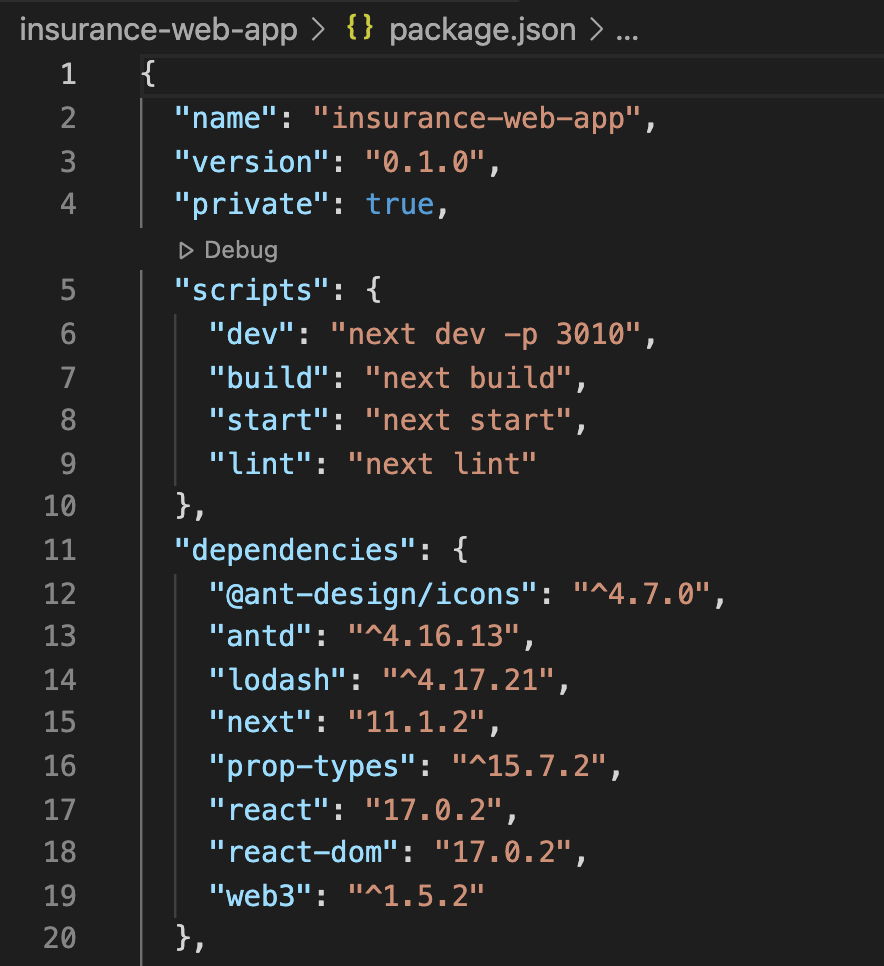
All the Insurance Co. Web Application dependencies are configured in package.json file in insurance-web-app
directory as follows.
You can use the following command to install all dependencies.
npm install
Run Insurance Co. Web Application
After successfully install all the dependencies run the following command to start the Insurance Co. Web Application.
You can use the same terminal in the insurance-web-app directory which was used to run the above command.
npm run dev
This command will start the Insurance Co. Web Application on network port 3010 in your machine.
Before running this command make sure your network port
3010 is free to use. If any process already running on network port 3010
you can kill the process and run above command again.
As shown in the above image this port was configured on the package.json file in the insurance-web-app directory.
you can replace 3010 with any desired port in the scripts.dev value.
You can try this method instead of killing the process on prot 3010 if its occupied.
If all commands execute successfully you can access the Insurance Co. Web Application from your browser.
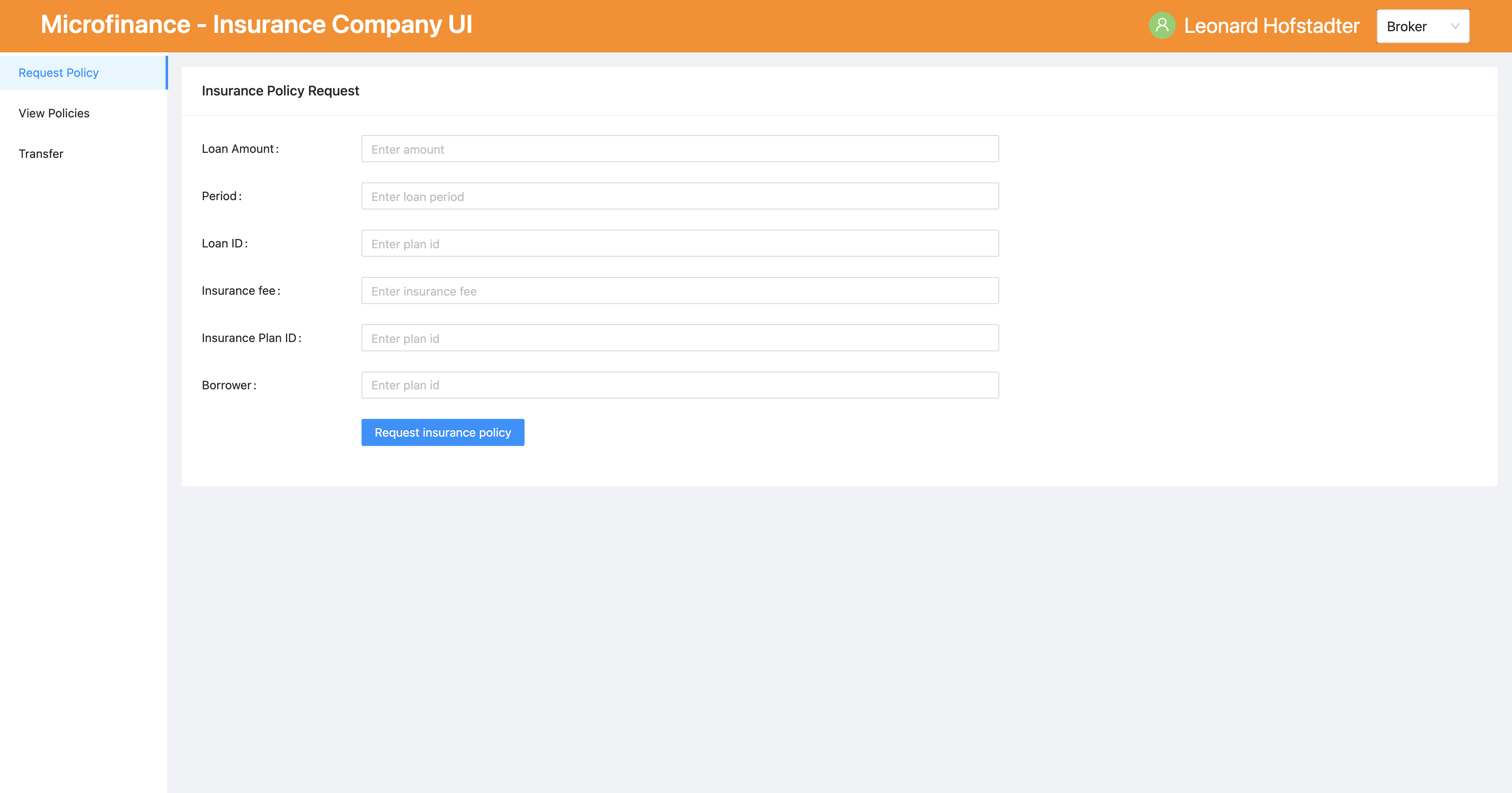
Open a Google Chrome browser, go to localhost:3010, and you can see the following UI.